Biology eTextbook Information, Registration, and Login

for Current School Year


You May Want to Print the Out the Following for Easier Use and Navigation


See the Correct Course Below


NOTE: After registering your text, please do the following to prevent any errors if you have Internet Explorer 9+


·        Under “Tools” in the task bar, Select “Compatibility View Settings” and Select/Add [Pearsonsuccessnet.net]

·        Under “Tools” in the task bar, Select “Pop-Up Blocker” and Turn Off the Feature


General Biology, Botany, and Zoology: Biology by Miller and Levine


First Time Users: To Register in SuccessNet


1.      Go to www.pearsonsuccessnet.com

2.      Scroll down the page until you see the REGISTER button. Click on REGISTER

3.      On the next screen, TYPE the specific class access CODE (select “ONLY” the correct class from below) in the Access Code Field: Click “NEXT”.  If you want to “copy” and “paste” the CODE (ie. off: www.rm118.com), be sure not to include any spaces in the front or back of the code.


Period 2 General Biology CURRENT YEAR:  2F24F22DE14703EF68A8   (use all uppercase letters, and include dashes if necessary)


Period 3 General Biology CURRENT YEAR:  0927447D5F20A2991690   (use all uppercase letters, and include dashes if necessary)


Period 7 General Biology CURRENT YEAR:  FECE6A2368032B8CBC20   (use all uppercase letters, and include dashes if necessary)


4.      When creating a User Name, DO NOT use your full name and DO NOT use a User Name from another class.

5.      When creating a Password, keep it as simple as possible and DO NOT use any undesirable language.  Please Use 6 or more numbers and/or letters with NO spaces or punctuation; Passwords are case sensitive.

6.      There is no need to fill out a student ID.  Just complete the required (*) items on the form.

7.      WRITE your User Name and Password down in or on a secure place.  It is suggested that you write your User Name and Password down in two different places to insure you do not forget it.

8.      At the end of registration process, the SuccessNet login Page appears.

9.      Test your registration by Logging in by typing your User Name and Password.  Remember, it is your responsibility to keep track of your User Name and Password.

10.  In the event you move to a different period, you will have to remove your registration and redo this process with your “new” class code.


Existing Users: To Enroll In or Access this Class


1.      Go to www.pearsonsuccessnet.com

2.      Log in by TYPING your existing User Name and Password.

3.      From your HomePage, click MY ACCOUNT.

4.      Click ADD CLASS/GROUP

5.      Follow the instructions, and use “ONLY” the correct class Access Code above to enroll in this class or group.

6.      You may wish to create a shortcut or a favorite on your browser to www.pearsonsuccessnet.com for quicker access to the page.


* If you have any difficulties, see Mr. Butler as soon as possible.


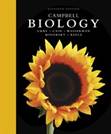
Advanced Biology: Biology by Campbell


First Time Users: To Register in Masteringbiology


1.      You will need a valid email account and ZIP code for your school: 46781-9713

2.      Go to  http://www.masteringbiology.com/

3.      Click Students under Register

4.      When creating a User Name, DO NOT use your full name and DO NOT use a User Name from another class.

5.      Select YES, I have an Access Code.

6.      USE THE CODE GIVEN TO YOU IN CLASS INSIDE THE BROCHURE (use all uppercase letters, and include dashes if necessary).  THE CODE CAN ONLY BE USED ONE TIME. Click Continue

7.      Accept the License Agreement and Privacy Policy

8.      Select NO, “I do not have a Pearson Account”

9.      Continue to give the requested information until you complete the process.  The confirmation and Summary page confirms your registration. 

10.  The information that you provided will be “emailed” to you for your records.

11.  Test your registration by Logging in by typing your User Name and Password.  Remember, it is your responsibility to keep track of your User Name and Password.


Existing Users: To Enroll In or Access this Class


1.      Go to http://www.masteringbiology.com/

2.      Enter your Login Name and Password that you specified during registration and click Log In.

3.      You will be asked to Join a Course by entering the MasteringBiology Course ID; do so by entering:  ADVBIO

4.      You may wish to create a shortcut on your desktop or a favorite link on your browser to http://www.masteringbiology.com/ for quicker access to the page.


* If you have any difficulties, see Mr. Butler as soon as possible.


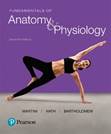
Anatomy and Physiology: Anatomy and Physiology 9th ed. by Martini, Nath, and Bartholomew


First Time Users: To Register in Masteringandp


1.      You will need a valid email account and ZIP code for your school: 46781-9713

2.      Go to  http://www.masteringaandp.com/

3.      Click Students under Register

4.      When creating a User Name, DO NOT use your full name and DO NOT use a User Name from another class.

5.      Select YES, I have an Access Code.

6.      USE THE CODE GIVEN TO YOU IN CLASS INSIDE THE BROCHURE (use all uppercase letters, and include dashes if necessary).  THE CODE CAN ONLY BE USED ONE TIME. Click Continue

7.      Accept the License Agreement and Privacy Policy

8.      Select NO, “I do not have a Pearson Account”

9.      Continue to give the requested information until you complete the process.  The confirmation and Summary page confirms your registration. 

10.  The information that you provided will be “emailed” to you for your records.

11.  Test your registration by Logging in by typing your User Name and Password.  Remember, it is your responsibility to keep track of your User Name and Password.


Existing Users: To Enroll In or Access this Class


1.      Go to http://www.masteringaandp.com/

2.      Enter your Login Name and Password that you specified during registration and click Log In.

3.      You will be asked to Join a Course by entering the MasteringA&P Course ID; do so by entering:  ANAPHY

4.      You may wish to create a shortcut on your desktop or a favorite link on your browser to http://www.masteringaandp.com/ for quicker access to the page.


* If you have any difficulties, see Mr. Butler as soon as possible.


NOTE: After registering your text, please do the following to prevent any errors if you have Internet Explorer 9+


·        Under “Tools” in the task bar, Select “Compatibility View Settings” and Select/Add [Pearsonsuccessnet.net]

·        Under “Tools” in the task bar, Select “Pop-Up Blocker” and Turn Off the Feature